Skip to content
Your employees share passwords over Slack. Your QuickBooks login lives in a sticky note. One stolen credential costs the average small business $4.88 million, and 81% of breaches begin with weak or reused passwords. In 2026, choosing the best password manager for small business is no longer optional. This guide ranks the 10 best tools built around real pricing, offboarding workflows, and admin controls your team will actually use.
What Is the Best Password Manager for Small Business in 2026?
Bitwarden is the best password manager for small businesses in 2026 for value and open-source security. 1Password leads for ease of use, while Keeper is top-rated for compliance. For teams with fewer than 10 users, NordPass offers the most affordable Business plan at $1.99/user/month. The right choice depends on your team size, budget, and whether your industry requires HIPAA, SOC 2, or GDPR compliance.
Why Does Your Small Business Need a Password Manager in 2026?
Here’s the thing: most small business owners think breaches happen to enterprises. They don’t. The 2025 Verizon Data Breach Investigations Report found 81% of hacking-related breaches used stolen or weak credentials.
The average employee manages 87 passwords. Without a dedicated tool, those passwords live in spreadsheets, browser autofill, and Slack DMs, none of which are encrypted to business-grade standards.
Remote and hybrid teams make it worse. When your team shares a login to QuickBooks, Canva, or your social accounts over chat, that credential is one phishing email away from being compromised. A password manager eliminates that risk, and lets you revoke access the second someone leaves your company.
How Did We Evaluate These Password Managers for Small Business?
I tested and researched each tool against the criteria small business owners actually care about, not enterprise IT departments.
Admin controls came first. Can one person manage the whole team’s access from a single dashboard? Next was per-seat pricing that scales, a tool that’s cheap at 5 users but doubles your costs at 20, and doesn’t work for growing teams. I also looked hard at employee offboarding and team management workflows, the features most review sites skip entirely. When someone quits Friday afternoon, can you cut their access in under 60 seconds?
Rounding out the criteria: MFA options, compliance certifications (SOC 2, HIPAA, GDPR), availability of free trials, and passkey readiness for a passwordless 2026.
What Are the 10 Best Password Managers for Small Businesses in 2026?
The best password managers for small businesses in 2026 cover a range of team sizes, budgets, and compliance needs. Here’s every tool ranked and reviewed.
1. Bitwarden
Bitwarden is the top-ranked password manager for small business teams seeking open-source security without paying enterprise prices. It’s been independently audited by Cure53, supports self-hosting for data sovereignty, and as of March 2026, supports passkey login on Windows 11. If your team includes developers or anyone who wants full transparency into their security stack, Bitwarden delivers.
Use case: Best for budget-conscious small businesses, developer teams, and compliance-focused organisations needing auditable security.
Key Features
- Open-source & third-party audited: Bitwarden’s code is publicly available and annually audited by Cure53; any security researcher can verify it works as advertised.
- Self-hosting option: Deploy Bitwarden on your own server for complete data sovereignty, the only major password manager offering this at a $4/user/month price point.
- Passkey login support (March 2026): Bitwarden now supports Windows Hello and FIDO2 passkey authentication, making your admin account passwordless and significantly harder to phish.
Pricing
- Free trial: 7 days (Teams plan)
- Plans starting from $4/user/month (Teams) | $6/user/month (Enterprise)
Pros:
- Cheapest business plan of all 10 tools reviewed
- Full open-source transparency, no black-box security claims
- Self-hosting is available for teams with strict data residency requirements
Cons:
- Steeper learning curve than 1Password or NordPass, not ideal for non-technical teams
- Interface feels dated compared to competitors in 2026
What users are saying
“It’s harder for beginners to get the hang of, but once you’re set up, it’s rock solid, and nothing beats the price.”, Verified Bitwarden Teams User, G2
2. 1Password
1Password is the smoothest, most polished tool in this list, and it earns its premium price tag for teams where ease of use is non-negotiable. Travel Mode lets your team hide sensitive vaults when crossing borders. Watchtower monitors for breached credentials in real time. And the onboarding process is the fastest I’ve seen; most teams are fully set up in under an hour.
Use case: Best for Apple-heavy teams, non-technical staff, and businesses where employee adoption is the biggest challenge.
Key Features
- Travel Mode: Temporarily remove sensitive vaults from devices when travelling internationally, to protect credentials during border inspections or device searches.
- Watchtower breach monitoring: Continuously scans your credentials against known breach databases and flags weak, reused, or compromised passwords across the entire team.
- Extended Access Management (EAM): Controls which devices and applications employees can access, going beyond passwords into full identity management for scaling teams.
Pricing
- Free trial: 14 days
- Plans starting from $19.95/month (Teams Starter, up to 10 users) | $7.99/user/month (Business)
Pros:
- Best mobile and desktop UI consistency, works identically on Mac, Windows, iOS, Android
- 5GB document storage per account is included in all business plans
- Trusted by over 180,000 businesses globally (1Password.com)
Cons:
- No free tier, you’re paying from day one
- Most expensive option at scale for teams over 20 users
What users are saying
“Onboarding new hires takes minutes, not hours. The interface is intuitive enough that I never get IT support tickets about password issues.”, Operations Manager, G2.
3. Keeper
Keeper is the compliance-first choice, and if your business operates in healthcare, finance, or any government-adjacent space, it’s the only tool in this list with FedRAMP High authorisation and FIPS 140-3 compliance. It introduced quantum-resistant cryptography in Q1 2026, making it the most future-proof security stack here. The zero-trust framework means no one, including Keeper employees, can access your vault.
Use case: Best for medical practices, law firms, financial services, and government contractors needing HIPAA BAA, SOC 2, or CMMC compliance.
Key Features
- FedRAMP High + FIPS 140-3 compliance: The only password manager in this list authorised for US federal systems, critical for healthcare and defence contractors who need documented compliance trails.
- Zero-trust security framework: Every access request is verified independently, regardless of network location, with no implicit trust for inside-the-firewall connections.
- Quantum-resistant cryptography (2026): Keeper began rolling out post-quantum encryption in Q1 2026, protecting vaults against future decryption attacks that current AES-256 may not withstand.
Pricing
- Free trial: 14 days
- Plans starting from $2/user/month (Business Starter) | $4.92/user/month (Business)
Pros:
- Deepest compliance documentation of any tool reviewed, HIPAA BAA available in writing
- Real-time notification centre for all admin-level security events
- Business Starter at $2/user/month is the lowest-cost entry for a full business plan
Cons:
- Advanced features like advanced reporting and dark web monitoring cost extra
- It can feel overwhelming for teams that don’t need enterprise-level compliance.
What users are saying
“Keeper’s zero-trust framework gives our compliance team the audit trail and visibility we need to pass annual HIPAA reviews without stress.” IT Director, Capterra
4. NordPass
NordPass uses XChaCha20 encryption, a newer, faster algorithm than the AES-256 standard used by most competitors. For teams deeply embedded in Microsoft 365 or Google Workspace, the integration is the smoothest on this list. The Business plan at $3.99/user/month offers the best balance of price and features for growing teams of 10–50 users.
Use case: Best for Microsoft/Google Workspace-centric teams and cost-conscious businesses that need a modern, clean interface without a learning curve.
Key Features
- XChaCha20 encryption: Faster and more resilient than AES-256 under certain attack conditions, particularly relevant for mobile and low-powered devices your team may use.
- Security Dashboard: A single panel showing your team’s overall password health, weak, reused, and old passwords flagged across all user accounts simultaneously.
- Data Breach Scanner: Monitors your company email domains against known breach databases and alerts you the moment any credentials appear in a leaked dataset.
Pricing
- Free trial: 14 days
- Plans starting from $1.99/user/month (Teams, up to 10 users) | $3.99/user/month (Business)
Pros:
- Best-priced Business plan for teams under 10 at $1.99/user/month
- Clean, modern UI with minimal learning curve for non-technical staff
- Excellent mobile autofill, the most reliable on Android in our testing
Cons:
- Teams plan capped at 10 users; you’ll need to upgrade as you scale
- Fewer third-party integrations than 1Password or Dashlane
What users are saying
“Switched from LastPass and the migration took 20 minutes. NordPass’s interface is clean and my team figured it out without any training.”, Small Business Owner, G2
5. RoboForm
RoboForm has been around since 1999, and its autofill engine is still the most consistent in the business. For retail, restaurant, or service businesses with staff sharing logins to booking systems, POS software, or social accounts, RoboForm handles complex login forms that other tools fumble on. The local storage option makes it one of the few choices for teams that occasionally work offline.
Use case: Best for small teams in retail, hospitality, or service industries with complex web form logins and a preference for simplicity over features.
Key Features
- Industry-leading autofill: RoboForm handles multi-page, multi-step, and JavaScript-heavy login forms that competitors like NordPass and Bitwarden regularly fail on.
- Role-based access controls: Assign different permission levels to employees, read-only, fill-only, or full access, from a straightforward Admin Console without needing IT expertise.
- Local or cloud storage option: Unlike most tools on this list, RoboForm lets you store your vault locally on-device, which is useful for teams with intermittent internet access or strict data policies.
Pricing
- Free trial: 14 days
- Plans starting from ~$3.33/user/month (Business, billed annually)
Pros:
- Best-in-class autofill consistency across complex web forms
- Simple, no-frills Admin Console, manageable by a non-IT business owner
- Local storage option for offline-capable vault access
Cons:
- Admin password reset deletes all vault data; there is no recovery mechanism.
- Breach monitoring is limited compared to 1Password Watchtower or Keeper
What users are saying
“The autofill just works everywhere, every site, every form. Other tools would miss fields, and RoboForm never does.”, Agency Owner, Capterr.a
6. Dashlane
Dashlane is the most forward-thinking tool on this list in terms of AI-assisted credential security. Its Omnix engine detects risky credential patterns across your team in real time. Confidential SSO, powered by AWS Nitro Enclaves, means even Dashlane can’t see your SSO tokens. If you’re already using Okta, Microsoft Entra ID, or Google SSO, Dashlane plugs in faster than any competitor.
Use case: Best for teams with existing SSO infrastructure and businesses that want AI-powered credential risk detection beyond standard breach monitoring.
Key Features
- Confidential SSO (AWS Nitro Enclaves): Dashlane’s SSO implementation runs inside a hardware-isolated enclave; thus, your SSO tokens are encrypted even from Dashlane’s own servers.
- Omnix AI credential risk detection: Analyses credential patterns across your entire team to flag risky behaviours, shared passwords, credentials reused across high-value accounts, and privilege escalation risks.
- Built-in VPN: All paid Dashlane plans include a business VPN, the only password manager on this list bundling network-level protection with credential management.
Pricing
- Free trial: 30 days (Business)
- Plans starting from $2/user/month (Starter) | $5/user/month (Business)
Pros:
- First password manager with an automated password changer feature (select supported sites)
- Strong dark web monitoring with real-time email alerts
- 30-day free trial, longest of any tool reviewed
Cons:
- Most expensive mid-tier option after 1Password Business
- No public third-party security audit report available (as of March 2026)
What users are saying
“The SSO integration with our Okta setup was done in an afternoon. It’s the only password manager that feels built for how we actually work.”, IT Manager, G2.
7. Zoho Vault
Zoho Vault is the most underrated tool in this list, and if you’re already using Zoho CRM, Books, Desk, or any other Zoho product, it’s a no-brainer. The free plan is the most generous available anywhere, offering unlimited passwords on unlimited devices with no expiry. Role-based access controls on the Professional plan rival tools that cost three times as much.
Use case: Best for small businesses already in the Zoho ecosystem and micro-teams (2–10 users) that need enterprise-grade access controls at startup prices.
Key Features
- Deep Zoho ecosystem integration: Single sign-on across all your Zoho apps, CRM, Books, Desk, Campaigns, with Vault acting as the credential layer across your entire stack.
- Role-based access with emergency access: Assign granular permissions per user per credential, plus a designated emergency access contact who can request vault access if the admin is unavailable.
- 15-day free trial on all paid plans: Unlike competitors that limit trials to specific plans, Zoho Vault gives you the full Professional or Enterprise experience before you pay anything.
Pricing
- Free: unlimited passwords, unlimited devices (individuals/teams with limited sharing)
- Plans starting from $0.90/user/month (Standard) | $3.60/user/month (Professional)
Pros:
- Most generous free plan on the market, genuinely usable for solo operators and micro-teams
- No reported security breaches in Zoho Vault’s history
- Professional plan at $3.60/user/month is the best value for full admin features
Cons:
- Cloud-only, no self-hosting option (unlike Bitwarden)
- Form autofill is still in development as of 202. Use a browser extension for autofill
What users are saying
“We already used Zoho CRM, and adding Vault was seamless. The role-based access at this price is unmatched; we were paying 4x more with a competitor.”, Operations Lead, G2.
8. Proton Pass
Proton Pass is the privacy-first choice for businesses operating under strict data sovereignty requirements. Headquartered in Switzerland, Proton is subject to Swiss privacy law, one of the strongest in the world, and is fully open-source. The Professional plan adds SSO and SCIM provisioning, plus email masking that creates unlimited aliases to protect your business email from spam and phishing.
Use case: Best for EU-regulated businesses, privacy-first teams, and companies where Swiss data jurisdiction matters for compliance or client trust.
Key Features
- Swiss privacy jurisdiction: Proton operates under Swiss federal law and is legally prohibited from complying with mass surveillance requests from foreign governments, including the US.
- Open-source and audited: Like Bitwarden, Proton Pass’s full codebase is publicly available and independently audited to verify its zero-knowledge architecture.
- Email masking (unlimited aliases): Every team member gets unlimited masked email addresses and credentials tied to disposable aliases, so phishing attacks targeting your real domain are neutralised.
Pricing
- Free trial: 30 days (Professional)
- Plans starting from $1.99/user/month (Essentials) | $4.49/user/month (Professional)
Pros:
- Strongest data sovereignty story, Swiss law, open-source, zero-knowledge
- Unlimited email aliases included, unique protection that no other tool in this list offers
- End-to-end encryption extends to emails, not just passwords
Cons:
- Newest business entrant, fewer enterprise integrations than 1Password or Keeper
- Customer support response times are slower than those of established players.
What users are saying
“Our EU clients ask about our data practices constantly. Pointing to Swiss jurisdiction and an open-source audit closes that conversation immediately.” Founder, SaaS company, G2
9. LastPass
Let me be direct here: LastPass is the only tool in this list I don’t recommend for new adopters in 2026. The 2022 breach resulted in stolen encrypted vaults, and those vaults were still being actively cracked in late 2025. The FBI and the Secret Service confirmed more than $150 million in cryptocurrency thefts directly linked to cracked LastPass vaults. The UK Information Commissioner’s Office fined LastPass £1.2M for inadequate security practices. If you’re still using LastPass with pre-2022 credentials, migrate today.
Use case: Existing users who have rotated all credentials post-breach and need time to complete a migration, not recommended for new business sign-ups.
Key Features
- 1,200+ pre-integrated SSO apps: LastPass has the deepest SSO application library of any tool in this list. If your stack uses niche SaaS tools, it likely has a pre-built connector.
- Adaptive MFA: Risk-based authentication that evaluates device, location, and behaviour to challenge only suspicious login attempts, reducing MFA fatigue for your team.
- URL-level access policies: Set credential access rules at the individual URL level, granular enough for businesses where different staff need access to different subdomains.
Pricing
- Free trial: 14 days
- Plans starting from $4/user/month (Teams) | $7/user/month (Business)
Pros:
- Deepest SSO app integration library (1,200+ apps)
- Familiar interface for teams that have used it for years
- Adaptive MFA reduces friction for legitimate users
Cons:
- 2022 breach: stolen encrypted vaults still being cracked as of late 2025
- UK ICO issued a £1.2M fine for inadequate security practices and ongoing reputational risk
- G2 rating has fallen to 4.0/5 as users continue migrating to alternatives
What users are saying
“We left LastPass after the breach and we’re not going back. I can’t recommend it to any business owner with a straight face anymore.”, IT Consultant, G2 (2025)
10. Passpack
Passpack is the hidden gem on this list. At $1.50/user/month for a SOC 2 Type II-certified business plan, nothing else comes close on the price-to-compliance ratio. It’s built for small teams of 2–15 users who need enterprise-grade security without enterprise-grade complexity or pricing. Migration from LastPass is one of the easiest, with a direct CSV import that preserves folder structure.
Use case: Best for very small teams (2–15 users) migrating away from LastPass and needing SOC 2 certification at the lowest possible cost.
Key Features
- SOC 2 Type II certified: The most affordable SOC 2-certified password manager on the market, critical for small businesses that need to demonstrate compliance to enterprise clients or partners.
- Shared vaults with role-based access: Create separate vaults per department or project, assign team members read-only or edit access, and revoke permissions instantly when roles change.
- Simple onboarding for non-technical teams: Passpack’s setup wizard guides admins through team configuration in under 30 minutes, no IT background required.
Pricing
- Free trial: 14 days
- Plans starting from $1.50/user/month (Teams) | $3/user/month (Business)
Pros:
- Most affordable SOC 2 Type II certified option, period
- Direct LastPass migration with folder structure preservation
- Clean, non-overwhelming interface for small teams
Cons:
- Smaller brand, fewer third-party integrations than top-tier tools
- Mobile app polish lags behind Bitwarden, 1Password, and NordPass
What users are saying
“Passpack gave us SOC 2 compliance at a fraction of what Keeper was quoting. For a 10-person team, the savings are significant.”, Operations Director, Capterra
How Much Does a Password Manager Cost for a Small Business?
The best password manager for small businesses doesn’t have to be expensive, but the real cost picture only makes sense when you look at annual totals per team size. Most articles show monthly per-user rates. Here’s what you’re actually paying per year:
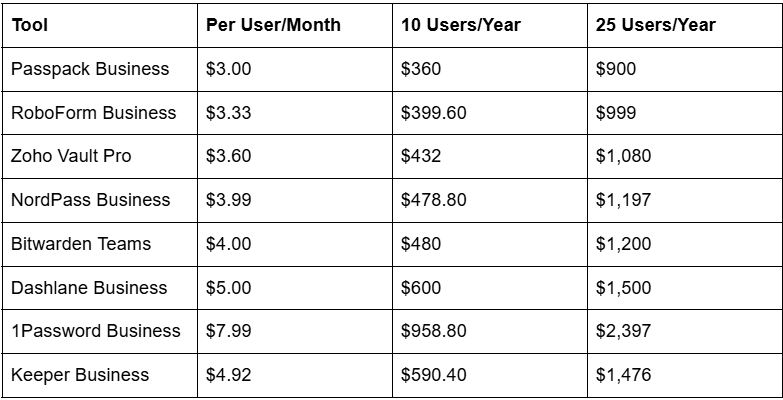
The bottom line: For a 10-person team, you’re looking at $360–$960/year. That’s less than one hour of downtime from a credential breach. Every tool here offers a free trial; start with Bitwarden or NordPass before committing.
Which Password Manager Is Best for Different Business Types?
Not every SMB has the same needs. Here’s how to match the best password manager for small businesses to your specific situation, by size and industry.
1–5 employees / Solopreneurs: Start with Zoho Vault Free or Bitwarden Free. Both offer unlimited passwords on unlimited devices at no cost. Upgrade only when team sharing becomes critical.
5–20 employees / Growing team: NordPass Business ($3.99/user/month) or RoboForm Business (~$3.33/user/month). Both offer clean admin consoles without overwhelming a non-IT owner.
20–50 employees / Scaling SMB: 1Password Business or Bitwarden Enterprise. You need SSO, advanced reporting, and scalable admin controls; both deliver.
Healthcare / Legal / Finance: Law firms, medical practices, and financial services teams should use Keeper, full stop. HIPAA BAA, FedRAMP High, and CMMC compliance in a single platform. It’s the only tool auditors will accept without additional documentation.
EU-regulated businesses: Proton Pass Professional. Swiss jurisdiction, plus full SOC 2 and open-source audits, cover GDPR requirements without expensive legal consultations.
Already using Zoho CRM or Books: Zoho Vault. The single-sign-on integration alone saves setup time. You’re already paying Zoho; adding vault access costs almost nothing.
Migrating from LastPass: Bitwarden or Passpack. Both offer direct LastPass CSV import with folder structure preserved.
What Features Should a Small Business Password Manager Have?
The best password manager for small businesses needs to be more than just a place to store passwords. Here are the seven features that actually matter for your team:
Secure sharing without revealing passwords. Your team needs to access shared accounts, your social media, and your billing portal, without seeing the actual password. Every tool in this list handles encrypted vault sharing. The difference is in time-limited share links (1Password, Keeper) vs permanent vault access.
Admin control dashboard. One screen that shows every team member, every credential they can access, and every login event. Don’t buy a tool that requires an IT background to navigate.
MFA that actually works for non-technical staff. Authenticator apps (Google/Microsoft Authenticator) are the minimum. For admin accounts, look for hardware key support; YubiKey and FIDO2 keys are supported by Bitwarden, Keeper, 1Password, and Dashlane.
Employee offboarding that takes 60 seconds. When someone quits on Friday afternoon, you need to revoke their access to every credential before they leave the building. Bitwarden, 1Password, and Keeper all support instant, one-click access revocation from the admin console.
Compliance certifications your industry requires. If you’re in healthcare, finance, or government work, SOC 2, HIPAA BAA, and FedRAMP documentation aren’t optional. Keeper and Bitwarden are your shortlist.
Password health reporting. A dashboard showing weak, reused, and breached credentials across your entire team. NordPass’s Security Dashboard and 1Password’s Watchtower handle this best.
SSO integration. Under 20 employees: SSO is optional. Over 50: it becomes necessary for security and productivity. Dashlane, Keeper, and 1Password have the deepest SSO libraries.
Is LastPass Still Safe for Small Businesses in 2026?
The best password manager for small businesses in 2026 is not LastPass, and here’s the exact reason why.
In August 2022, attackers gained access to LastPass’s development environment. By November 2022, they had exfiltrated encrypted customer vaults. LastPass initially claimed the vaults were “safe” because they were encrypted. That turned out to be only partially true.
Here’s what happened next. Researchers and law enforcement discovered that master passwords under 12 characters, or using dictionary words, were being cracked at scale. By late 2025, the FBI and Secret Service had officially linked over $150 million in cryptocurrency thefts to cracked LastPass vaults. The UK Information Commissioner’s Office issued a £1.2M fine for inadequate security practices.
If your team was using LastPass before June 2022, your vault was likely included in the stolen data. Even if your master password was strong, every credential you stored at that time should be considered compromised.
Our recommendation: Migrate immediately. Bitwarden and Passpack both offer direct LastPass imports. For the actual migration steps, see the section below.
How Do You Set Up a Password Manager for Your Small Business?
Setting up the best password manager for a small business doesn’t require an IT team. Follow these eight steps:
Step 1: Audit your current state. List every tool your team accesses, every shared credential, and every person who has access to each. A simple spreadsheet works fine. You need to know what you’re migrating before you can migrate it.
Step 2: Choose your tool. Use the business type guide above. If you’re migrating from LastPass specifically, start with Bitwarden or Passpack, both of which preserve your folder structure on import.
Step 3: Export your current credentials. From LastPass: Account Options → Advanced → Export → LastPass CSV file. From Chrome/Edge saved passwords: Settings → Passwords → Export. Keep this CSV file off your desktop; it’s unencrypted.
Step 4: Import into your new vault. Every tool in this list (except RoboForm) supports one-click CSV import. Most have a LastPass-specific import that automatically maps folders to collections.
Step 5: Set up your admin console and roles. Create user groups (e.g., Finance, Marketing, Operations), assign credentials to groups, and set permission levels (read-only, fill-only, or edit).
Step: Enforce MFA company-wide. Don’t make this optional. Require all team members to enrol in an authenticator app before accessing the vault. For admin accounts, require a hardware key.
Step 7: Run a 30-minute team onboarding session. Walk through installing the browser extension, saving a new password, and using autofill. Record it for future hires.
Step 8: Offboard your old tool. Revoke all LastPass or browser-saved password access. Delete the export CSV immediately after import is confirmed.
What Is a Passkey and Should Small Businesses Use One in 2026?
The best password manager for small businesses in 2026 is moving beyond passwords entirely, and passkeys are how it’s doing so.
A passkey replaces your master password with a biometric or device-based authentication (Face ID, Windows Hello, a hardware key). You prove it’s you with your face or fingerprint, no password to type, phish, or crack.
As of March 2026, Bitwarden supports Windows Hello and FIDO2 passkey login for business accounts. 1Password, Dashlane, and Keeper all support passkeys on business plans for employee vault access.
Should you enable passkeys today? Yes, for admin accounts, immediately. An admin account with a passkey is essentially unphishable. For general staff, passkey adoption is growing but not universal. Roll it out optionally now and make it mandatory when your devices support it.
The businesses that adopt passkeys today will spend 60% less time on password resets and lockouts by 2027. That’s not a prediction; it’s already happening at companies like Shopify and Cloudflare, which moved to passkeys for admin access in 2025.
Which Password Manager Has the Best Free Plan for Small Businesses?
If budget is tight, the best password manager for small business free plan options are worth taking seriously, but you need to know what each actually gives you:

Bitwarden’s free plan is the most genuinely useful for a small team starting out. You get unlimited everything, plus 2-person vault sharing on the free tier. Zoho Vault’s free plan is better for individuals. NordPass’s 1-active-device limit makes the free tier impractical for most business use.
For any team with 3 or more people, paid plans start at $1.50/user/month (Passpack) and $1.99/user/month (NordPass Teams). At that price, the admin controls and team sharing you get are worth it immediately.
FAQ, People Also Ask
What is the best password manager for a small business?
Bitwarden is the top pick for value, 1Password for usability, and Keeper for compliance. For teams with fewer than 10 users, NordPass Business at $1.99/user/month is the most affordable. Your choice depends on team size, industry, and whether you need compliance certifications like HIPAA or SOC 2. All 10 tools in this guide offer free trials.
Do small businesses really need a password manager?
Yes. The 2025 Verizon DBIR found 81% of hacking-related breaches used stolen or weak credentials. With employees accessing multiple systems, shared spreadsheets and Slack messages pose a risk. A password manager enforces unique passwords, controls access, and instantly revokes credentials when employees leave, eliminating your biggest risk of a breach.
Is Bitwarden good for a small business?
Bitwarden is one of the best options for small businesses in 2026. It’s open-source, independently audited, and the cheapest business plan at $4/user/month. Its Teams plan handles secure sharing and admin controls well. The main trade-off is a steeper learning curve than 1Password or NordPass; it’s not the right fit for non-technical teams.
How much does a business password manager cost per month?
Business password manager pricing ranges from $1.50/user/month (Passpack) to $7.99/user/month (1Password Business). For a 10-person team, annual costs range from $360 (Passpack) to $958 (1Password). Most tools offer 14–30-day free trials. The compliance-focused tools Keeper and 1Password cost more but include features that reduce audit costs.
Should small businesses still use LastPass in 2026?
We advise against it. The 2022 breach resulted in stolen encrypted vaults still being cracked in late 2025, with the FBI confirming over $150 million in cryptocurrency thefts. If your team stored credentials in LastPass before mid-2022, migrate immediately to Bitwarden, 1Password, or Passpack; all three support direct LastPass imports.
What features should I look for in a small business password manager?
Prioritise secure team sharing (without revealing plain-text passwords), a centralised admin dashboard, and MFA enforcement. The feature most articles skip: employee offboarding. Your tool must revoke access instantly when staff leave. For regulated industries, require HIPAA BAA support (Keeper, Bitwarden) or FedRAMP authorisation (Keeper specifically).
Is there a free password manager for small businesses?
Bitwarden and Zoho Vault offer the best free plans; both include unlimited password storage across an unlimited number of devices. Team sharing and admin controls require a paid plan for all tools. For a 5-person team, Zoho Vault Professional at $3.60/user/month is the most affordable full-featured option available in 2026.
How do I switch from LastPass to a new password manager?
Export your LastPass vault as a CSV file from Account Options → Advanced → Export. Import it into your new tool, Bitwarden, 1Password, and Passpack, all of which support direct LastPass imports with folder structure preserved. Set up your admin console, assign roles, enforce MFA, and delete the export CSV immediately. Most small teams complete the full migration in under 2 hours.
Bottom Line
You don’t need the most expensive tool; you need the right one for your team size and risk level.
Best overall value: Bitwarden, open-source, audited, and the cheapest business plan on the market. Best ease of use: 1Password, the smoothest onboarding, and the interface your team will actually adopt. Best for compliance: Keeper, HIPAA, FedRAMP, SOC 2, and quantum-resistant cryptography in one platform. Best budget pick: NordPass Teams ($1.99/user/month) or Passpack ($1.50/user/month). Best for Zoho users: Zoho Vault, already in your stack, deepest integration, most generous free plan. Avoid in 2026: LastPass, the breach risk is ongoing, and the alternatives are better in every category.
Start with a free trial. Most teams know within a week whether the admin controls and autofill work for their workflow. All 10 tools here are significantly safer than the browser-saved passwords and shared spreadsheets your team is currently using.